Saturday, January 3, 2015

What is the Difference Between Basic Disk and Dynamic Disk
बेसिक डिस्क तथा डायनमिक डिस्क में अन्तर


Differences Between Basic and Dynamic Disks:
Basic disks are supported (readable) by all Windows operating systems since MS-DOS.

Dynamic disks are only supported (readable) by Windows 2000, XP Professional, Windows Server 2003, Vista Ultimate, Vista Enterprise, Windows 7, and Windows Server 2008.

Basic disks can have up to 128 GPT primary partitions, or 4 MBR primary partitions or 3 MBR primary partitions and 1 extended partition with up to 128 logical volumes in the extended partition.

Dynamic disks can have up to 2000 dynamic volumes that function like a primary partition used in basic disks.

Basic disks cannot share or split data with other primary or logical partitions, or basic disks. Each partitiion on a basic disk is treated as if it was a separate hard disk on the basic disk.

Separate dynamic disks can be combined into a single dynamic volume (spanning), split data among several dynamic disks (striping) for increased performance, or duplicate data among several dynamic disks (mirroring) for increased reliability.

Hard disks are basic disks by default, including removable disks and disks on a laptop (notepad).


Removable disks cannot be converted to a dynamic disk.

Complete Tutorial On BCDEdit Command of Command Line Tool
बी.सी.डी. ईडीट कमाण्ड का कम्प्लीट ट्यूटोरियल

Information:

This will show you how to use BCDEDIT in the command prompt and avoid the need of third party applications like EasyBCD.

Note:

Bcdedit is a really powerful tool that Windows Vista and Windows 7 uses to manage the boot loader entries.BCDEDIT needs a boot manager to boot your system.A boot manager is a file that contains necessary information that instructs the system how to boot/start an operating system.

>>>> Windows 7 and Vista boot manager file is \bootmgr
>>>> Windows XP boot manager file is \ntldr

BCDEDIT can support other boot managers too, like grub for Linux. You just have to place the boot file on the root of the boot manager partition. e.g. \grldr and you have a grub boot loader enabled.
Bcdedit edits a file called bcd , which is located in Windows 7's hidden partition under \boot\bcd.
In Vista, its located under C:\boot\bcd.

Warning:

You must be logged on in an administrator account to be able to do this tutorial.

To Use bcdedit:

1. Open an elevated command prompt.
2. Type bcdedit and press enter.
NOTE: By typing just bcdedit you just list your boot entries.

A boot entry consists of 4 main elements:
1. Identifier
The identifier is how the system has named the boot entry.
2. Device
The device is the drive or virtual image that the system will use to boot the boot entry.
3. Path
The path is the location on the device where the bootloader file is found.
4. Description
The description is the friendly name we give to our boot entry, e.g. "Windows 7" 

You see next to the identifiers their UUIDs in {}. The UUID is the unique codename that the system gives to each boot entry and cannot be changed.

The standard identifier UUIDs are explained below:

{bootmgr} = the boot manager
{current} = the OS you selected to boot at startup.
{default} = the default OS selected to boot the PC.
{ntldr} = Windows Legacy OS Loader (for windows xp)

There are others like {memdiag} or {ramdisk} but they can't be of much use right now.
   
Warning

IMPORTANT: 
make a backup of your bcd file first. To do that, type:
bcdedit /export C:\SAVEDBCD
This will create a file c:\savebcd which is your boot entry backup.

If you mess up, you can always undo changes by:
bcdedit /import c:\savedbcd
Now to see how we can control the above entries, here are some examples:

bcdedit /set {current} description "My edited Windows Boot Entry"
NOTE: This changes the title of the boot menu entry "{current}".

bcdedit /set {ntldr} device partition=E:
NOTE: This tells bcd that Windows XP partition is drive E:

bcdedit /set {ntldr} path \ntldr
NOTE: This tells bcd that the ntldr file which is the winxp bootloader is on root folder "\" (of drive e: as stated above)

bcdedit /displayorder {ntldr} /addfirst
NOTE: This places Windows XP as the first OS on the menu list.

 bcdedit /default {ntldr}
NOTE: This places Windows XP as the default OS to boot first with.

bcdedit /displayorder {33342343-3424-2342342342-2344} /addlast
NOTE: This tells bcd that the boot entry with UUID 3334... should be the last entry on the menu.
You can copy your existing VISTA or Windows 7 boot entry to another identical. Then you can change settings on the new entry to experiment. You will always have the first entry available, so it's safe to play with.

bcdedit /copy {current} /d "New Windows 7 boot entry I just copied!"
this will give you a line:
NOTE: The entry was successfully copied to {4c21825f-e04b-11dd-b760-00195b61617a}. The {4c21825f-e04b-11dd-b760-00195b61617a} is the UUID of the new entry that the system just created. Yours will be different than mine! This is its identifier and you should use this to address that entry. 

Example:
bcdedit /set {4c21825f-e04b-11dd-b760-00195b61617a} numpoc 2
NOTE: This adds the 2 CPU Core support during boot, like you do in msconfig.

bcdedit /deletevalue {4c21825f-e04b-11dd-b760-00195b61617a} numproc
NOTE: This deletes the numproc parameter from entry {4c21825f....}
bcdedit /delete {}

FEEL LUCKY..


HOW TO TYPE IN URDU IN WINDOWS 
विण्डोज में उर्दू में टाइप करना


STEP 1: Install Urdu Nastaleeq Font (Jameel Noori).
                Click Here to Download

STEP 2: Install Urdu Phonetic Keyboard.
               Click Here to Download

STEP 2: Enable Unicode Urdu in Windows Windwos 7 By

                Pressing ALT + SHIFT together


HAPPY URDU TYPING


Keyboard Layout


Download Urdu Keyboard Layout PDF Click Here


How to type in Hindi Under Browsers Click Here

How to Setup Urdu Typing in Windows XP Click Here

Type Urdu Online using keyboard or mouse Click Here

Convert from InPage to Urdu Unicode text Click Here

Download Urdu Fonts Click Here

Installing the Urdu Font on Apple Mac Click Here


How to Type in Hindi in Mangal Font
मंगल फान्ट में हिन्दी टाइप करना 
(TYPING IN INSCRIPT) 


STEP 1. GO TO CONTROL PANEL > CLOCK, LANGUAGE AND REGION


STEP 2. GO TO CONTROL PANEL > CLOCK, LANGUAGE AND REGION

STEP 3. GO TO KEYBOARDS AND LANGUAGE TAB THEN CLICK ON CHANGE KEYBOARD BUTTON.


STEP 4. CLICK ON ADD BUTTON


STEP 5. SELECT AND CHECK HINDI > KEYBOARD > DEVANAGARI - INSCRIPT AS SHOWN BELOW THEN CLICK OK AGAIN OK.


STEP 6. AFTER THAT KEYBOARD WILL BE VISIBLE AS SHOWN BELOW, CLICK ON OK TO CLOSE THE DIALOG BOX. 


STEP 5. TO WRITE IN HINDI PRESS ALT + SHIFT KEYS TOGETHER RESULT WILL BE VISIBLE ON THE TASK BAR.


NOTE : विण्डोज में हिन्दी टाइप करने की डिफाल्ट पद्धति इनस्क्रिप्ट होती है। AND THIS IS ALSO USEFUL FOR SSC EXAMS.

KEYBOARD LAYOUT OF INSCRIPT KEYBOARD


HAPPY HINDI TYPING FRIENDS...

HOW TO TYPE IN URDU IN WINDOWS CLICK HERE

TOLL FREE NUMBERS FOR HP, WD AND DELL CLICK HARE

HOW TO EJECT DVD R/W TRAY USING COMMAND PROMPT CLICK HERE

HOW TO SEE BHULEKH OF YOUR CLICK HERE

HOW TO BLOCK WEBSITE ON YOUR PC CLICK HERE


How to Solve Problem Browsing with Internet Explorer?
इण्टरनेट एक्सप्लोरर को  रीसेट करना

STEP 1. Open Control Panel


STEP 2.Open Internet Options.


STEP 3. Follow the Steps Below.


STEP 4. Follow The Steps Below,,


STEP 5.Click On Close.


STEP 6.Happy Browsing


FEEL LUCKY


Download it in GIF Format


How to Recharge Your Mobile Online.. Click Here

How to Block A Website On YOur PC Click Here


Friday, January 2, 2015


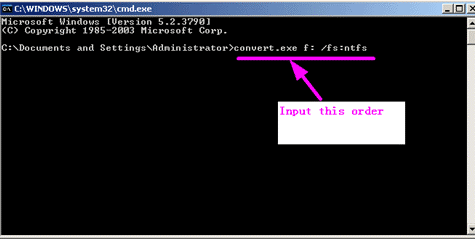
How to Convert FAT File System to NTFS File System
FAT फाइल सिस्टम को NTFS में बदलना

1. Open CMD Prompt By typing cmd in run.

2. Check for Errors On Drive by typing this command (E.g. Pendrive)

       Chkdsk H:

3. Type this command on cmd prompt for conversion.

        Convert H: /FS:NTFS


Note : Coverting NTFS File System to Fat File May Causes your Data Loss

If you forcely want to convert NTFS File System to Fat File System Without Data Loss use easeus partition manager. You Can Download It Here.

How to Manage User Accounts Using Command Prompt Click Here

How to Solve Certificate Error Of Internet Explorer Click Here

How to Format Your PC Using Pendrive Click Here


How to recharge Your Mobile Online 

अॉनलाइन मोबाइल रीचार्ज करें Click Here

Pay Your Electricity Bill Online Click Here
Know Your Pan Card Status Click Here